Google Business Profile setup checklist
Create or claim one profile, verify it, then fill every field accurately. Use this checklist in order; each step links to Google's help page.
Published · Updated
Before you start (what you need)
Gather your basic business information before you start your Google Business Profile setup. Having these items ready makes the process faster and helps you avoid common mistakes that delay verification.
- A Google account connected to your business email if you have one.
- Your real business name as it appears on your storefront signage and legal documents.
- Your physical address, or a list of the cities or postal codes in your service area.
- A local phone number under your direct control.
- Your website URL.
- Your regular business hours and upcoming holiday hours.
- Your logo and real photos of your location, team, vehicles, and work.
This checklist covers your profile setup. For website, citation and review tasks beyond the profile, use the local SEO checklist.
Step 1: Create or claim your profile
Start by checking if a listing already exists for your business on Google Maps or in local search results. Do not create a second profile if one is already there.
- Step item 1. Search for your business name and address on Google first (Google: Get started with Business Profile). If a listing exists, claim it or request ownership from the current manager instead of creating a duplicate. Why it matters: Google's guidelines say there should only be one profile per business, because duplicates cause problems with how your information shows on Maps and Search (Google: Guidelines for representing your business).
Step 2: Storefront or service area business
You must tell Google how you interact with customers. Your setup choice determines how your address appears on Google Maps.
- Step item 4. Enter your physical address if customers visit your storefront. If you travel to customers instead, set up your listing as a service area business, hide your physical address, and enter your service areas. Google allows up to 20 service areas and advises keeping the boundary within about a two-hour drive from your base. Why it matters: Google's guidelines say a service-area business should hide its business address from customers (Google: Guidelines for representing your business). The 20 area limit and the 2 hour guidance are on Google's service area page (Google: Manage your service area).
Step 3: Verify your business
Business profile verification proves you are the rightful owner. Google offers different verification options depending on your business category and history, such as a recorded video, phone call, text code, email, or postcard.
- Step item 6. Review all of your entered information for accuracy, then request verification and complete the check using the options Google provides. Why it matters: Google says customers can only find your Business Profile after you complete verification (Google: Sign up for Business Profile).
Step 4: Business information
Accurate contact details help people find and reach you. Make sure the text you enter matches your website and real-world signage.
Business name
- Step item 2. Enter your real-world business name exactly as customers see it on your signs and paperwork. Do not add extra keywords, search terms, or city names. Why it matters: Adding extra keywords or location names to your business name violates Google guidelines and can get your profile suspended (Google: Guidelines for representing your business).
Categories
- Step item 3. Choose the primary category that best describes your core business. Add secondary categories only for specific services you actually offer. Why it matters: Google asks you to choose the fewest categories it takes to describe your core business, and not to use categories as keywords (Google: Guidelines for representing your business).
Phone, website and hours
- Step item 5. Add a local phone number that connects directly to your business, along with your main website URL or best location landing page. Why it matters: Google's guidelines say to use a local phone number instead of a central call center helpline number whenever possible (Google: Guidelines for representing your business).
- Step item 7. Once verification is complete, enter your regular operating hours plus special hours for upcoming holidays. Why it matters: Accurate hours mean customers do not show up or call when you are closed.
- Step item 11. Add a direct booking or appointment link if your website offers online scheduling. Why it matters: It gives customers a direct way to schedule service from your search listing.
Step 5: Services, description and photos
A complete profile explains what you do and shows real proof of your work. Avoid stock images and promotional hype.
- Step item 8. Add your services and products using plain names and short descriptions that match the text on your website. Why it matters: Clear service lists help customers confirm that you handle their specific job before they call.
- Step item 9. Write your business description. Explain what you do, the areas you serve, and who you help. Do not include URLs, HTML, price promos, or claims you cannot prove. Why it matters: Google's guidelines allow no links of any type in the description and do not allow a focus on promotions, prices or sales (Google: Guidelines for representing your business).
- Step item 10. Upload your logo, a cover photo, and real photos of your team, vehicles, tools, storefront, or finished work. Why it matters: Real photos show people what to expect and help them recognize your business in the real world.
Step 6: Reviews
Google reviews help local customers decide who to hire. Build a simple habit for requesting and replying to customer feedback.
- Step item 12. Generate your short review link inside your account dashboard and share it with customers after you finish a job. Never buy reviews or offer anything in exchange for them, and ask every customer the same way instead of only the happy ones. Why it matters: Google's Maps content policy does not allow incentives such as payment, discounts or free goods in exchange for reviews, and removes incentivized reviews (Google: Maps user contributed content policy).
Step 7: Users and access
Protect your listing by making sure more than one person on your team can sign in and manage it.
- Step item 13. Add a trusted second person as an owner or manager in your profile settings, and learn how to transfer primary ownership if staff roles change. Why it matters: Having a backup owner prevents your business from getting locked out if one employee leaves or loses their email account.
Monthly upkeep checklist
Setting up your profile is not a one-time job. Use this monthly routine to keep your listing accurate.
- Check that your regular hours are still accurate.
- Set special holiday hours ahead of time for the coming month.
- Respond to every new customer review in a polite, direct tone.
- Add new real photos from recent jobs or around your location.
- Check your dashboard for suggested edits from Google or the public, and accept or reject them.
- Write a short post if you have a real company update, event, or seasonal service notice.
- Check that your listed services and products still match your website.
Common mistakes that can cause suspension
When a profile breaks the rules, Google can suspend it and remove it from Google Maps. Avoid these common mistakes (Google: Guidelines for representing your business):
- Creating duplicate profiles for the same business at the same location.
- Stuffing extra keywords, services, or city names into your business name field.
- Using a virtual office, unstaffed coworking space, or mailbox store as your physical address.
- Listing a PO Box as a storefront address.
- Displaying a street address for a home-based business instead of hiding it as a service area business.
- Using a routed call-center phone number instead of a direct local phone number.
- Posting fake reviews or paying for reviews (Google: Maps user contributed content policy).
Interactive checklist, printable PDF and embed
Use the interactive checklist below to track your setup progress in your browser, download the printable PDF for your desk, or copy the code to share this guide on your own website.
Download the printable checklist (PDF, 2 pages) No email required.
Embed this checklist
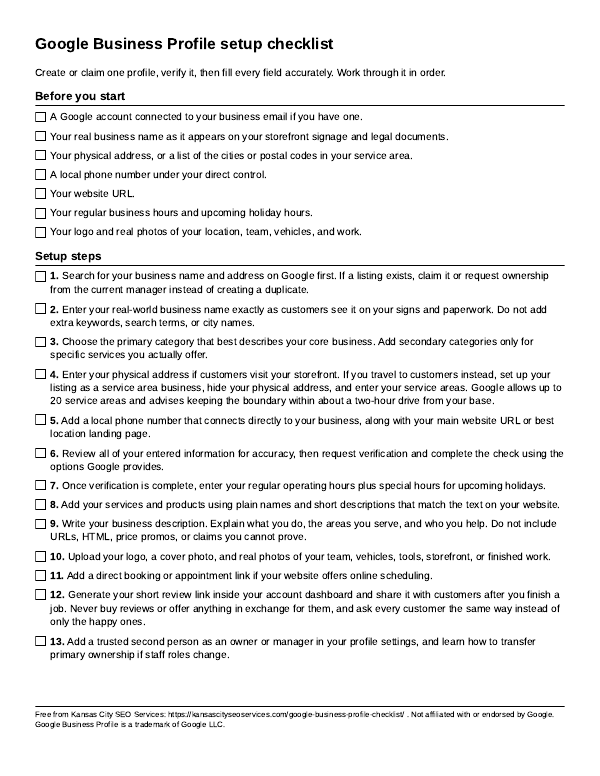
Chambers, coworking spaces and small business blogs are welcome to use it. Keep the credit link.
Not affiliated with or endorsed by Google. Google Business Profile is a trademark of Google LLC.
FAQ
How do I set up a Google Business Profile?
Sign in to a Google account, add or claim the business, choose storefront or service area, add details, then verify (Google: Get started with Business Profile).
Is a Google Business Profile free?
Yes, Google does not charge to create one (Google: Get started with Business Profile).
Do I need an address?
You need a real location or a service area. Service area businesses hide the address (Google: Sign up for Business Profile).
Why is my profile not showing?
Unverified profiles do not show publicly; finish verification first (Google: Get started with Business Profile).
Can I put keywords in my business name?
No. Google's guidelines say to use the real-world name (Google: Guidelines for representing your business).
How often should I update my profile?
Check it monthly and whenever hours or services change (Google: Get started with Business Profile).
Want a second look at your listing?
If you would like someone to look over your profile after you finish, the free Google listing check is a short review of your listing and landing page. No promises about where you will show up, just what to fix.